Appearance
How to Install and Use the Human Replied Trigger
A step-by-step tutorial for installing the Human Replied Trigger from the HighLevel App Marketplace and using it in your workflows to detect human replies and safely pause AI in live conversations.
Alpha
The app is currently in Alpha and is not listed on the public GoHighLevel App Marketplace. To install it in a sub-account, you need an installation link — please ask for it and we’ll send you the link.
What is the Human Replied Trigger?
The Human Replied Trigger is a custom trigger that runs a workflow when a human sends an outbound message (SMS, email, live chat, etc.). It tells your automation that "a person replied" so you can:
- Pause or stop AI when a human takes over the conversation
- Prevent AI overlap so you don't get duplicate or conflicting responses
- Create smooth handoffs between AI and your team
- Tag contacts, notify your team, or run any other workflow logic
The app is free, works at the sub-account level, and is built for human–AI collaboration in conversations.
Step 1: Find the app in the App Marketplace
- In your HighLevel account, open the App Marketplace from the left sidebar.
- Search or browse for "Human Replied Trigger" (by PlainAgents Labs).
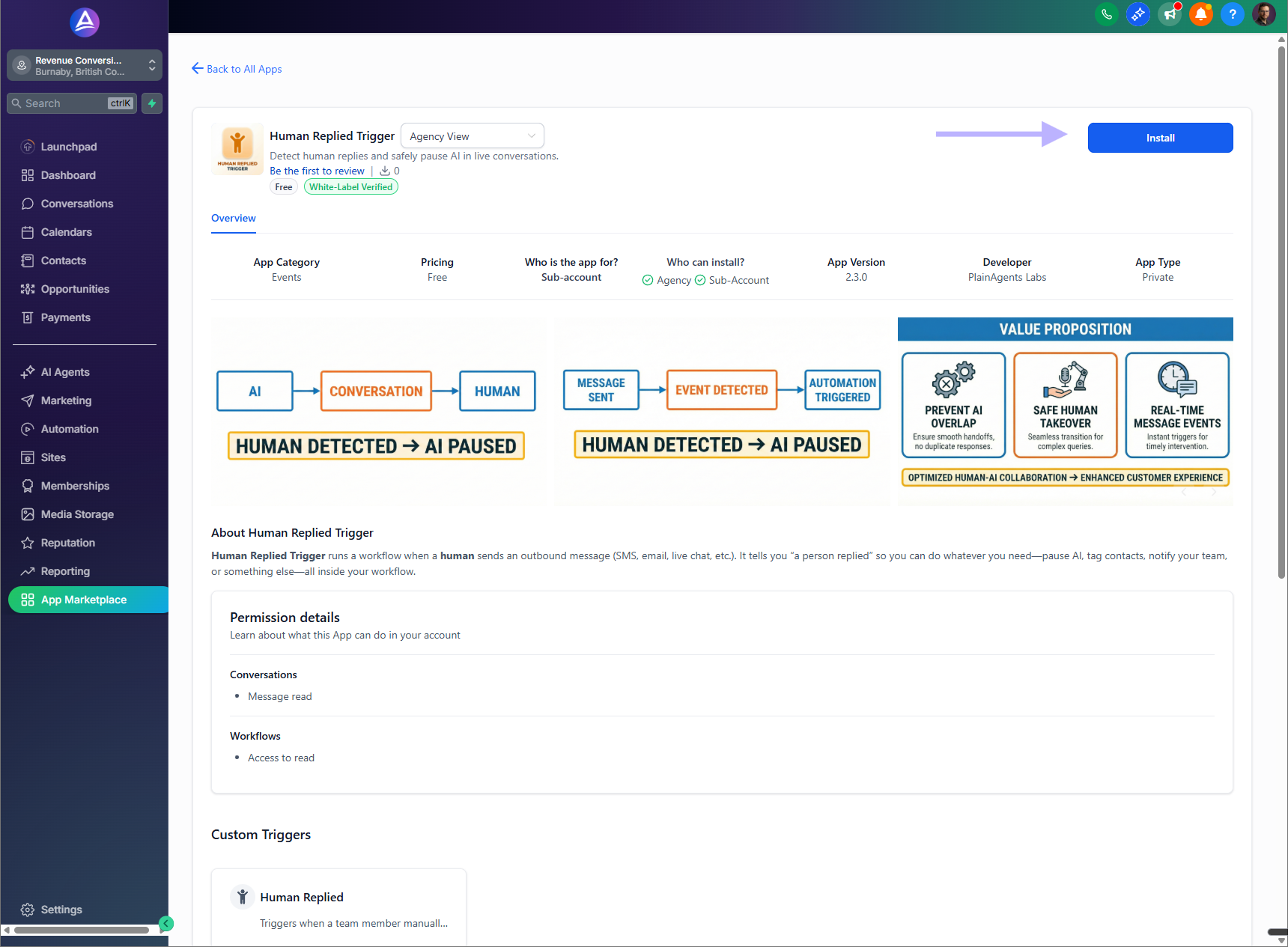
- Open the app page. You'll see the app icon, tagline, and an Install button.
Human Replied Trigger app page — click Install to continue.
Step 2: Install the app
- On the app page, click the blue Install button (top right).
- You'll be taken to the Install confirmation screen (see Step 3 for what it looks like and what to do next).
Step 3: Review, allow, and confirm installation
You'll see the Install confirmation screen. It shows the app name, the location where it will be installed, the permissions it needs (e.g. Conversations: Message read; Workflows: Access to read), and the Human Replied custom trigger. Review the details, then click Allow & Install (as shown in the first image below).
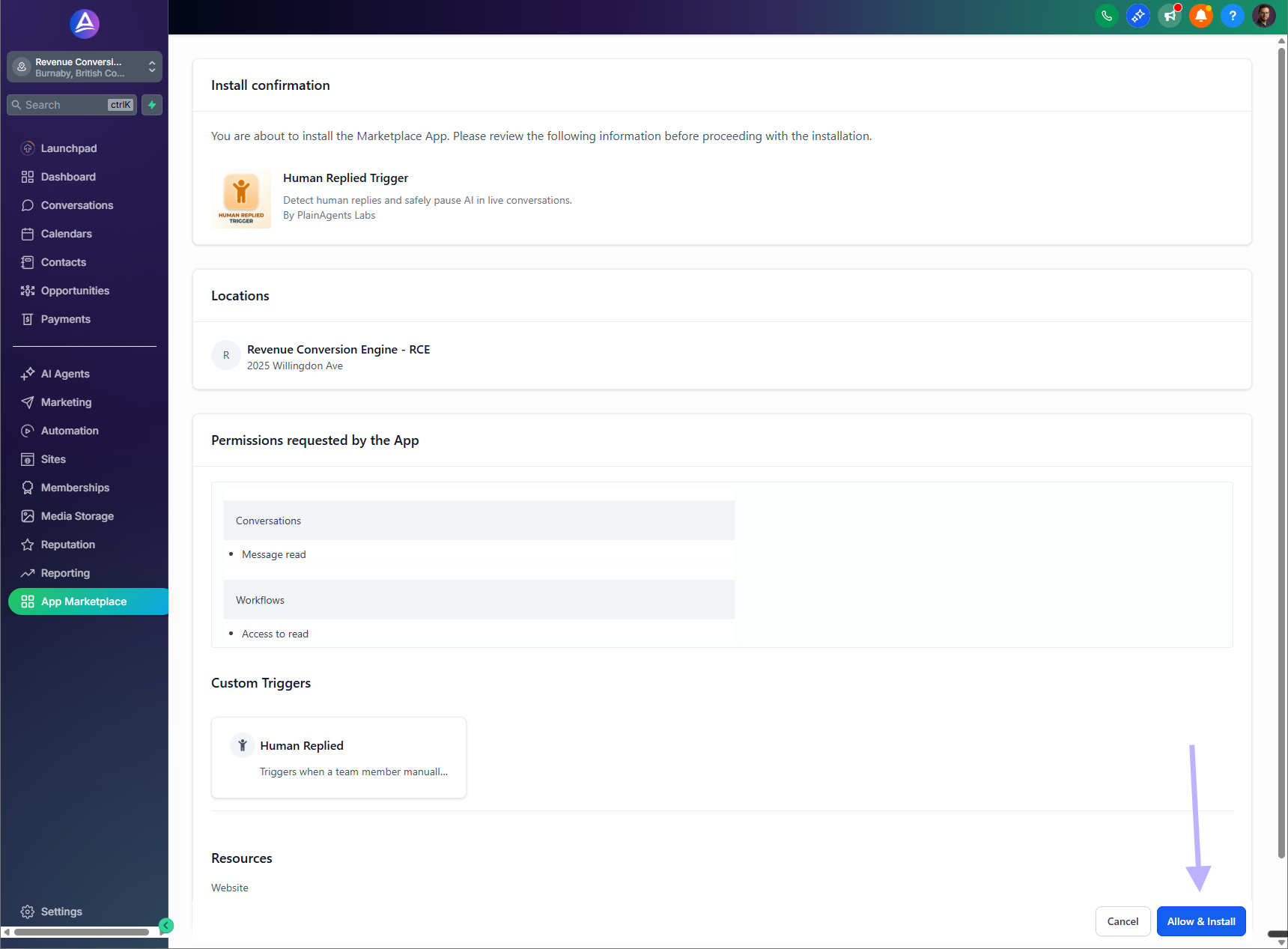
Click Allow & Install to complete the installation.
After you click it, you'll see the success message below. You can close the window then.
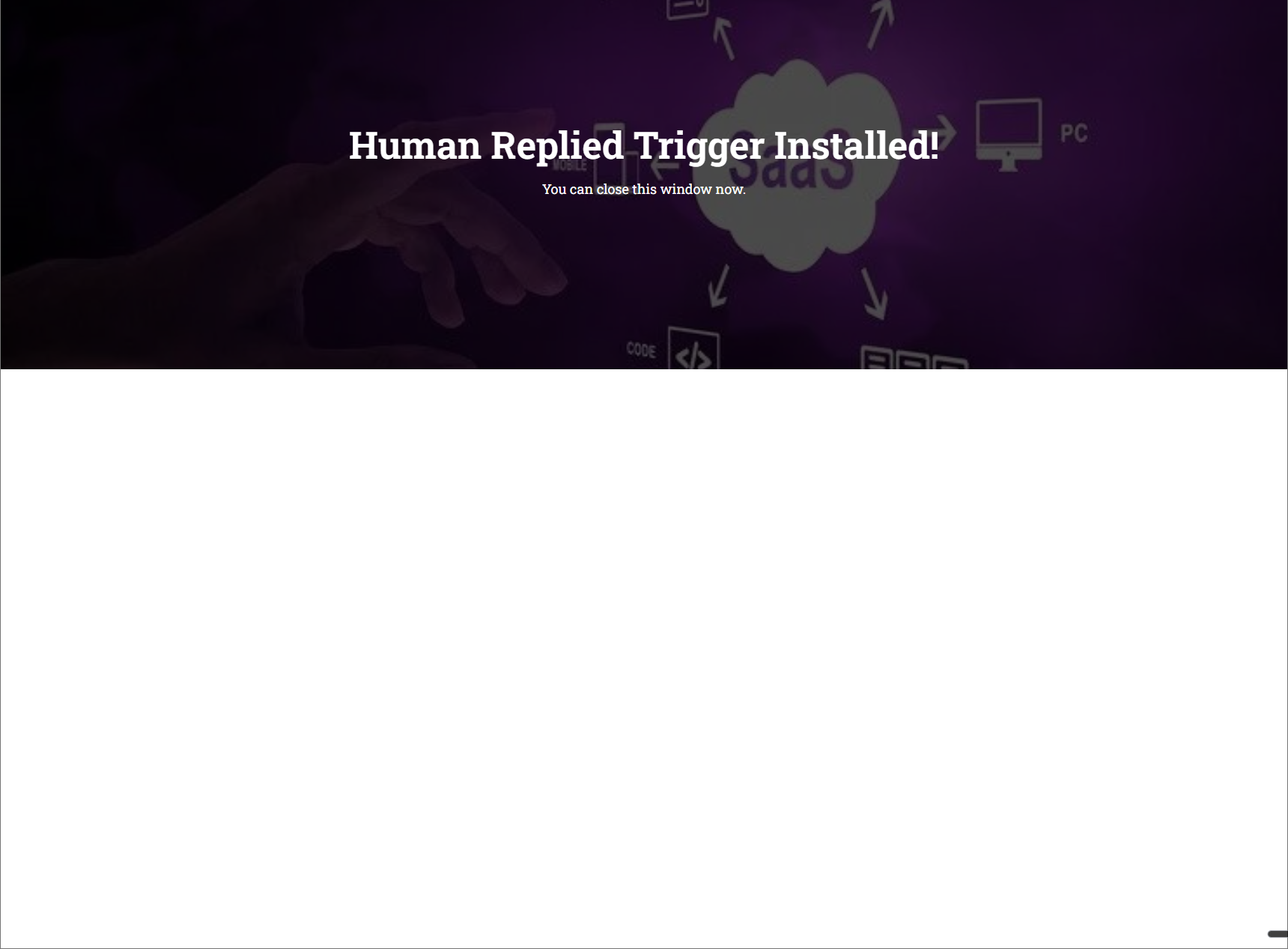
"Human Replied Trigger Installed!" — you can close this window now.
Step 4: Verify it's installed (optional)
To confirm the app is installed:
- Go to App Marketplace in the sidebar.
- Open the Installed Apps tab.
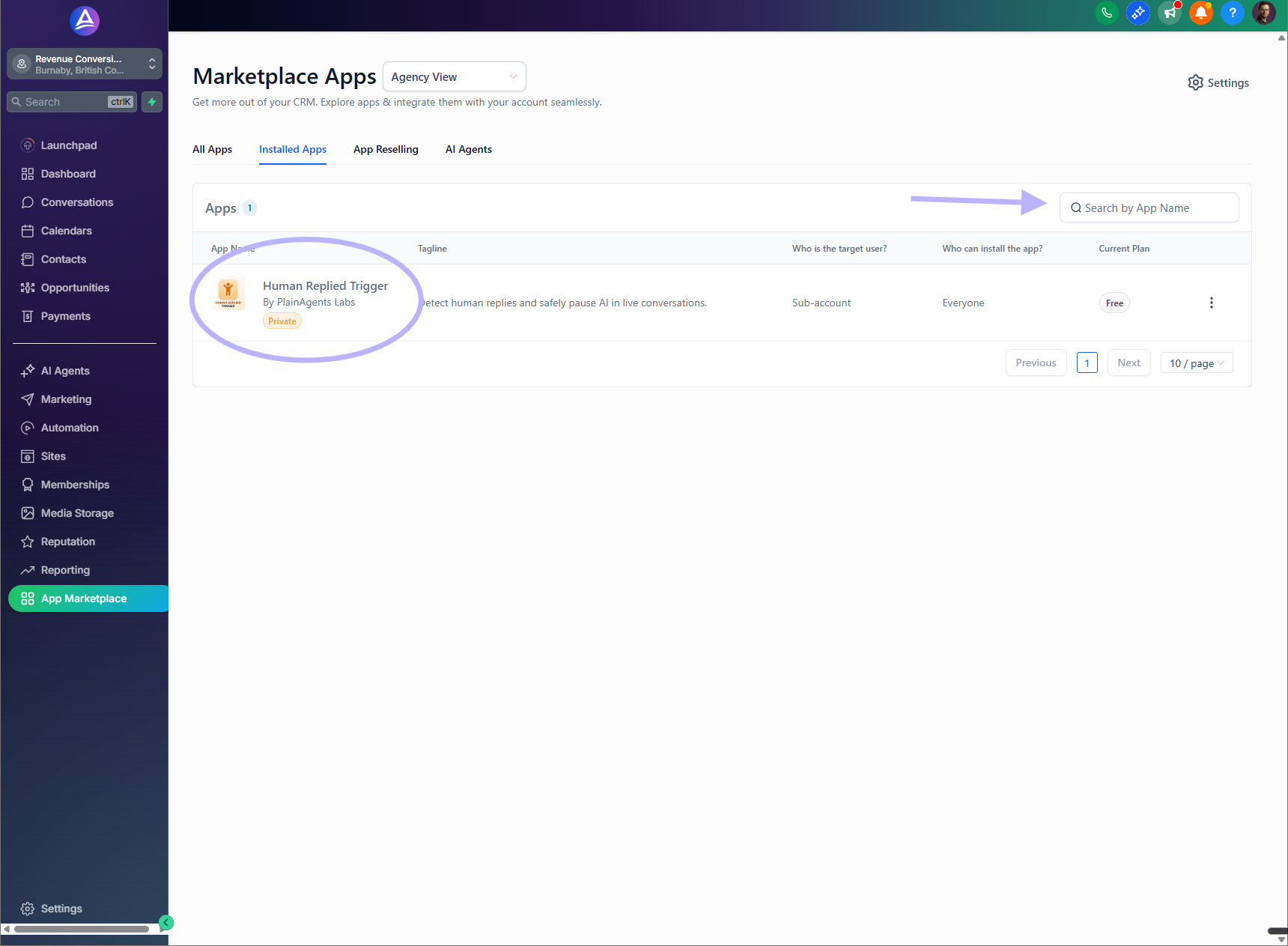
- You should see Human Replied Trigger by PlainAgents Labs in the list, with tagline "Detect human replies and safely pause AI in live conversations."
You can use the search bar to find it quickly if you have many apps.
Human Replied Trigger under Installed Apps.
Step 5: Use the trigger in a workflow
Once installed, the Human Replied trigger is available when you build or edit a workflow.
- Create a new workflow or open an existing one.
- In the Builder, add a trigger. Choose Human Replied (under Custom Triggers).
- The workflow will start when a team member (or contact) sends a message as a human — not when a workflow or AI sends it.
- Add the actions you want after the trigger, for example:
- Remove from other AI Workflows — so this contact is no longer in other AI-driven flows.
- Add to Stop AI for X hours — pause AI for a set time so a human can handle the conversation.
- Tag contact, Send notification, Assign to team member, or any other step you need.
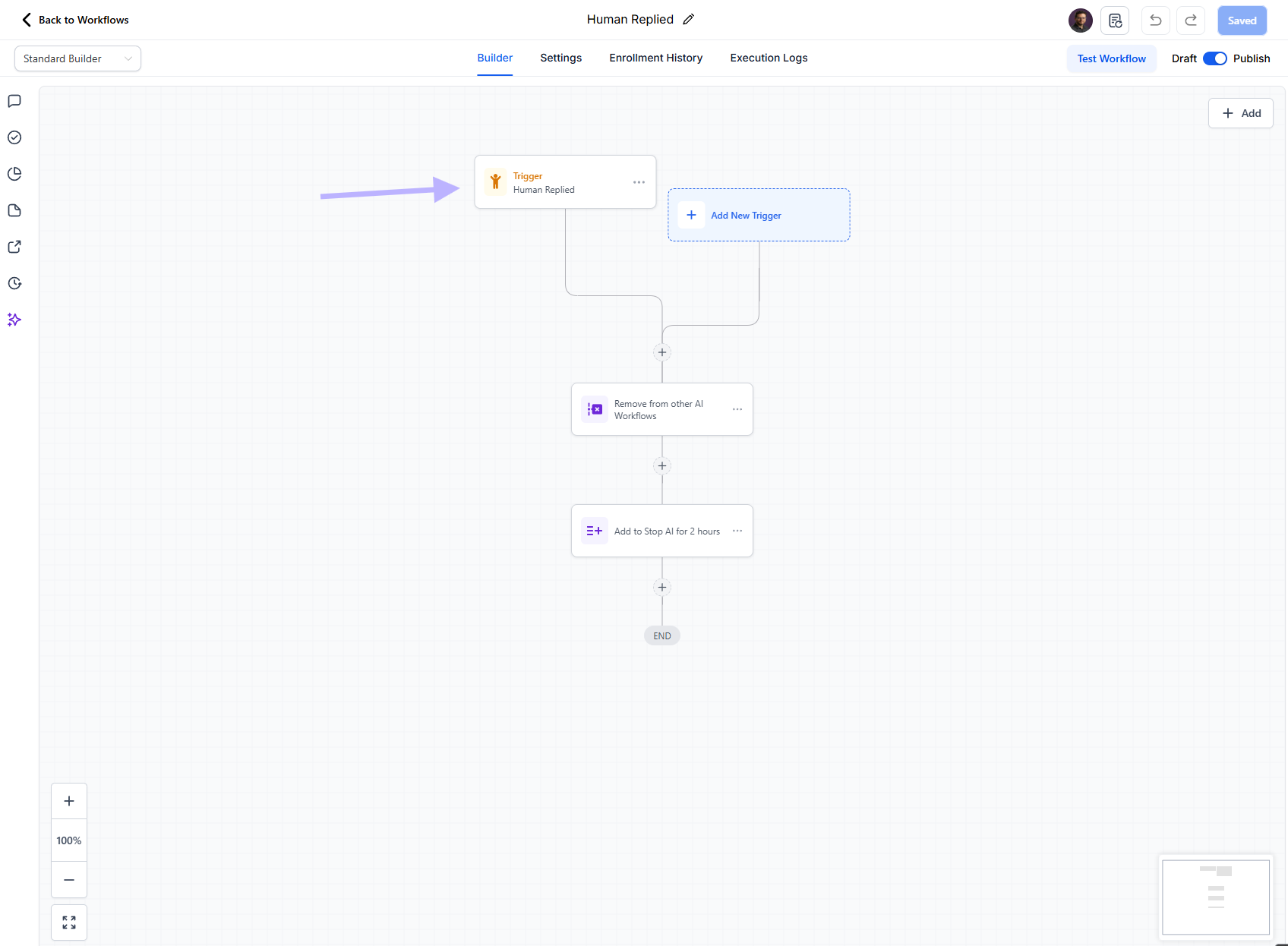
Example workflow: Trigger: Human Replied → Remove from other AI Workflows → Add to Stop AI for 2 hours → END.
Usage example: two workflows for AI pause
A common pattern is to use two workflows together: one that reacts when a human replies (using the Human Replied trigger), and another that performs the actual "stop AI → wait → resume AI" sequence. This keeps responsibilities clear and makes the pause duration easy to change in one place.
Workflow 1: Human Replied
The first workflow runs when a human sends a message. It prepares the contact for an AI pause and enrolls them in the timed pause flow.
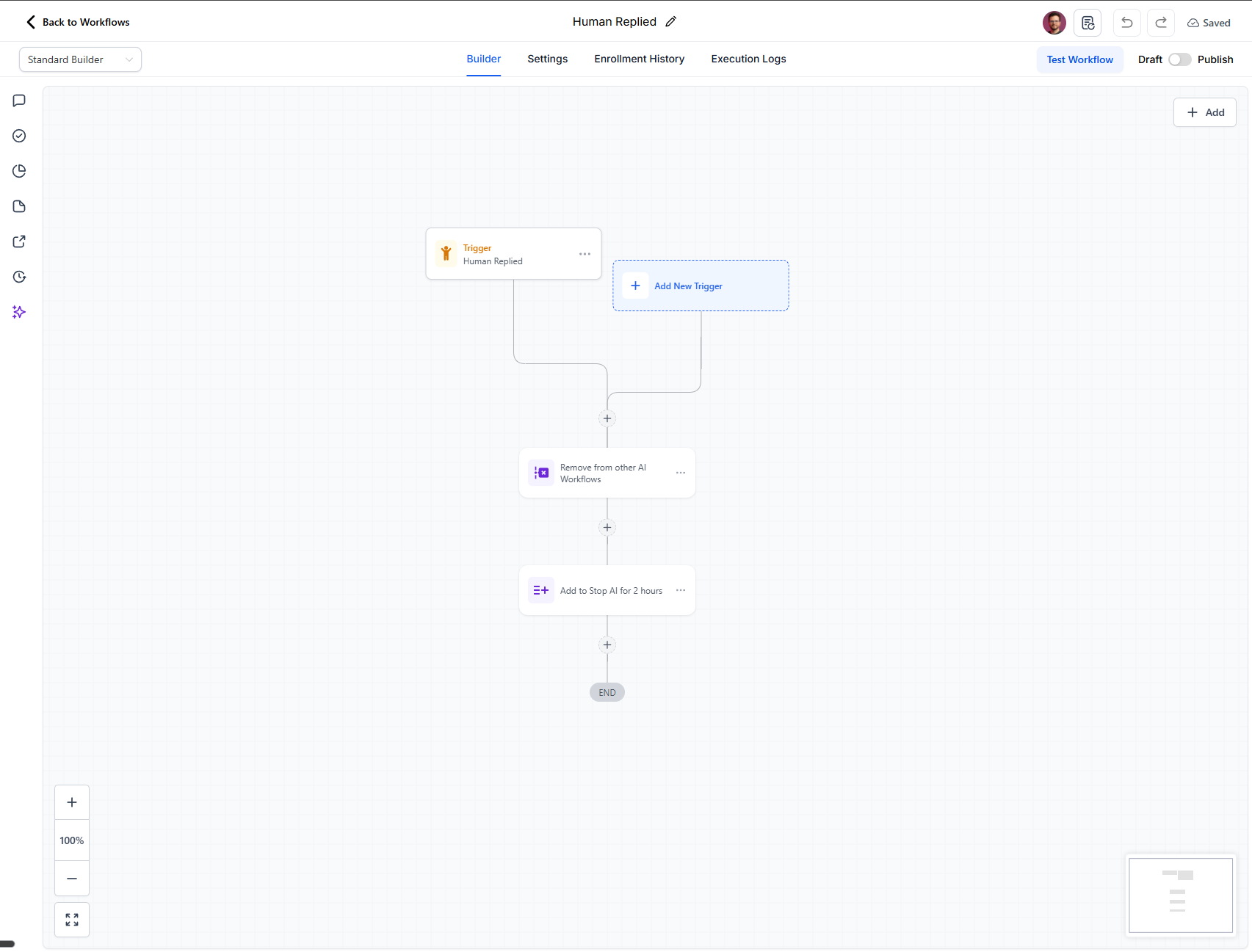
Steps:
- Trigger: Human Replied — Fires when a human (not a workflow or AI) sends an outbound message.
- Remove from other AI Workflows — Takes the contact out of any other AI-driven workflows so only this flow controls their AI state.
- Add to Stop AI for 2 hours — Adds the contact to your "Stop AI" list or enrolls them in the second workflow so AI is paused for a set time (here, 2 hours).
After this, the contact is in a "stop AI" state and the second workflow takes over the timing.
Workflow 2: Stop bot for 2 hours
The second workflow performs the pause itself: stop AI, wait, then resume. It is started when the contact is added to "Stop AI for 2 hours" (e.g. by enrollment or a list trigger from Workflow 1).
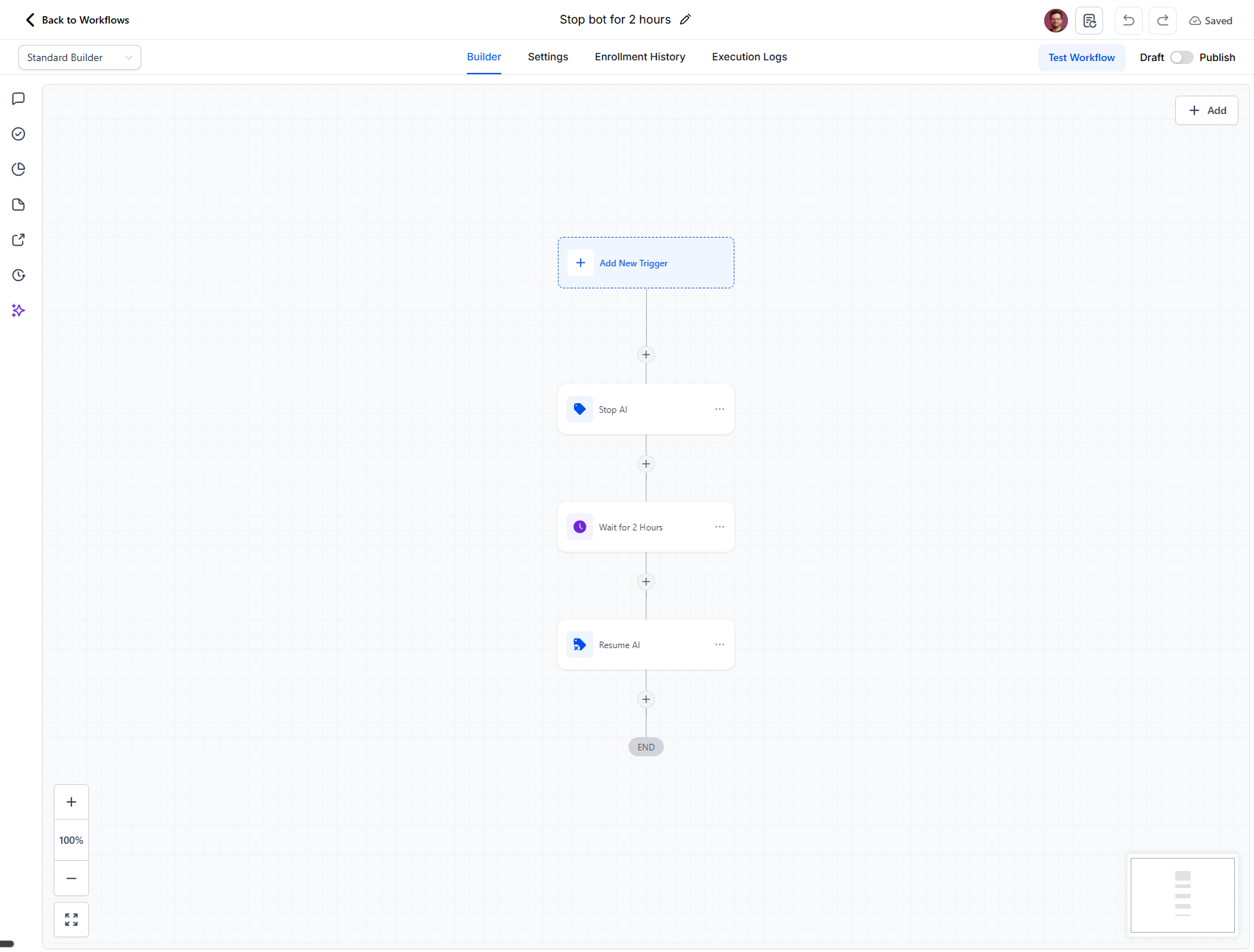
Steps:
- Trigger — Configure this to run when a contact is added to "Stop AI for 2 hours" (or when they are enrolled in this workflow by Workflow 1).
- Stop AI — Turns off AI for this contact so a human can handle the conversation.
- Wait for 2 Hours — Pauses execution for 2 hours so the human has time to reply without AI interfering.
- Resume AI — Turns AI back on for this contact after the wait.
How they work together
| Step | What happens |
|---|---|
| 1 | A human sends a message (e.g. in live chat). |
| 2 | Human Replied trigger fires → Workflow 1 runs. |
| 3 | Workflow 1 removes the contact from other AI workflows and adds them to "Stop AI for 2 hours." |
| 4 | That action starts Workflow 2 (via enrollment or list trigger). |
| 5 | Workflow 2 runs Stop AI → Wait for 2 Hours → Resume AI. |
| 6 | After 2 hours, AI is automatically resumed for that contact. |
Result: when a human replies, AI is paused for 2 hours and then resumes without extra manual steps. You can reuse the same "Stop bot for 2 hours" workflow from multiple places (e.g. different Human Replied workflows or triggers) and change the wait time in one workflow.
Adding filters to the trigger
You can add filters to the Human Replied trigger so the workflow only runs when certain conditions are met. For example, you might want it to run only for Live Chat messages, or only when a specific user (e.g. a team member) sends the reply.
When you add or edit the trigger, open the Add Trigger panel. In the FILTERS section you can add conditions such as:
- Channel — e.g. "Contains Phrase" → "Live Chat" so the workflow runs only for live chat replies.
- User ID — e.g. "Contains Phrase" → a user name or ID so it runs only when that user replies.
Use Add filters to add more conditions. Combine them to narrow down exactly when the Human Replied trigger should fire. Then click Save Trigger.
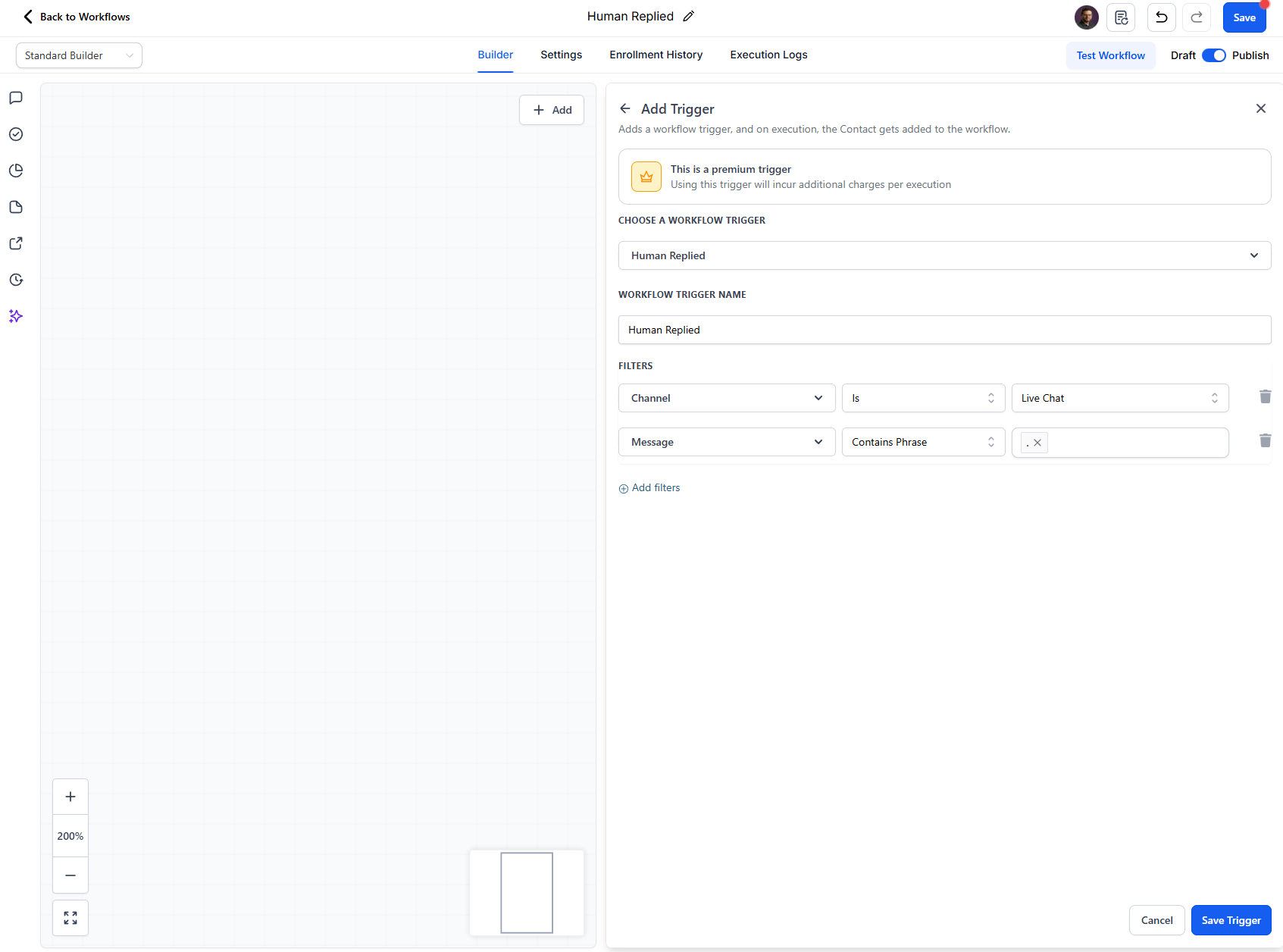
Add filters (e.g. Channel, User ID) to control when the Human Replied trigger runs.
Styling and behavior tips
- Trigger name — In the builder it appears as "Trigger: Human Replied" with the human-style icon. You can't change the icon, but you can name the trigger and your workflow (e.g. "Human Replied – Pause AI").
- When it fires — The trigger runs when a human reply is detected (e.g. from the conversation UI, mobile app, or manual send). It does not fire when the message is sent by a workflow or AI.
- One trigger, many actions — Use one "Human Replied" trigger and chain as many actions as you need: pause AI, tag, notify, add to a list, etc.
Summary
| Step | Action |
|---|---|
| 1 | Open App Marketplace and find Human Replied Trigger. |
| 2 | Click Install → review Install confirmation → click Allow & Install. |
| 3 | See "Human Replied Trigger Installed!" and close the window. |
| 4 | (Optional) Check Installed Apps to confirm. |
| 5 | In a workflow Builder, add the Human Replied trigger and your desired actions (e.g. remove from AI workflows, add stop-AI period). |
| 6 | (Optional) Use two workflows for AI pause: one with Human Replied → remove from AI + add to Stop AI; a second with Stop AI → wait → Resume AI. See Usage example: two workflows for AI pause above. |
You're now ready to detect human replies and control AI behavior in your conversations. If you run into issues, check that the app is installed for the correct location and that your workflow is published.